



 English
 한국어
한국어Set up a VPN, create a Nexon account for the Global region, and install MSCW through the Nexon Launcher
MSCW Starter Guide
Published
Before starting Global MapleStory Classic World (MSCW), check whether your location is in a supported region. Nexon serves different regions separately, and MSCW is available only in its Global region. See [1] for Nexon’s list of countries in that region.
If you live outside the Global region, you’ll need a VPN. I’ll show you when to use it, how to create a Nexon account for that region, and how to install MSCW through the Nexon Launcher.
0. Get Your VPN Ready
If you live in the Global region, you can skip this step. But if you live outside it, you’ll need a VPN.
First, here’s when to use it:
- Creating your account → VPN off (recommended)
- Installing the game → VPN may be needed
- Playing the game → VPN on
- Buying NX → VPN off
Nexon does not state that you must turn off your VPN when signing up [2], but many players in the community recommend doing so (better safe than sorry). See [3] for Nexon’s guidance on VPNs and Cash Shop purchases. In short, keep your VPN off when creating an account or buying NX, use it if you need it for installation, and keep it on while playing.
For a step-by-step VPN setup, see my MSCW VPNs: Setup, Tips, Costs & Performance post. It also addresses the question, “Is it really okay to use a VPN?” In brief, Nexon appears to allow VPN use if you’re simply trying to play the game rather than using it to violate the Terms of Service.
1. Create a Global-Region Nexon Account
Nexon accounts are region-specific. If you haven’t played a Nexon game in the Global region before, you’ll need to create a new Nexon account for that region to play MSCW. See [4] for more information.
Warning
I recommend turning off your VPN while creating your account.
1.1. Open the Account Creation Page
Go to the Nexon account creation page for the Global region.
1.2. Create Your Account
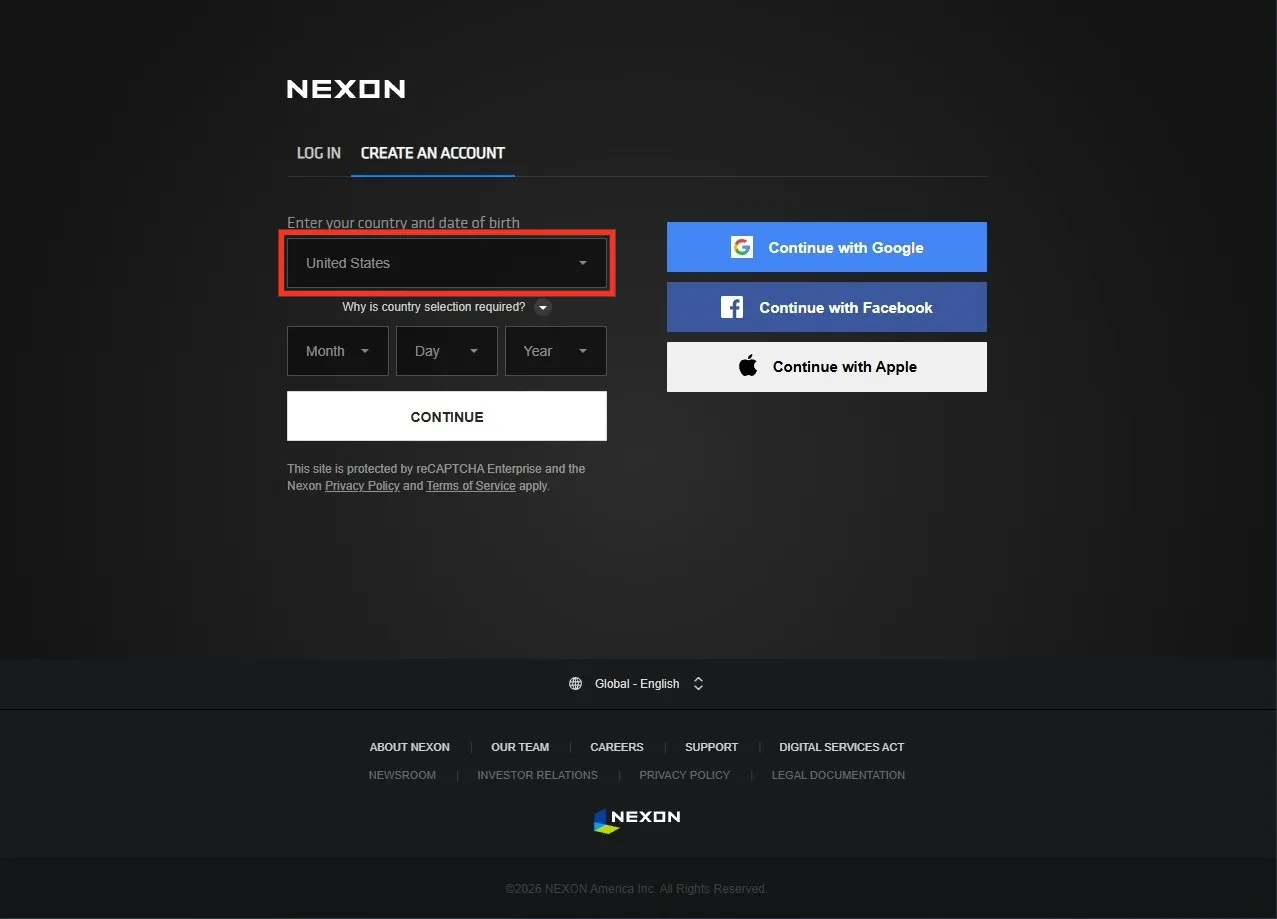
Select United States as your country, enter your date of birth, and click CONTINUE.
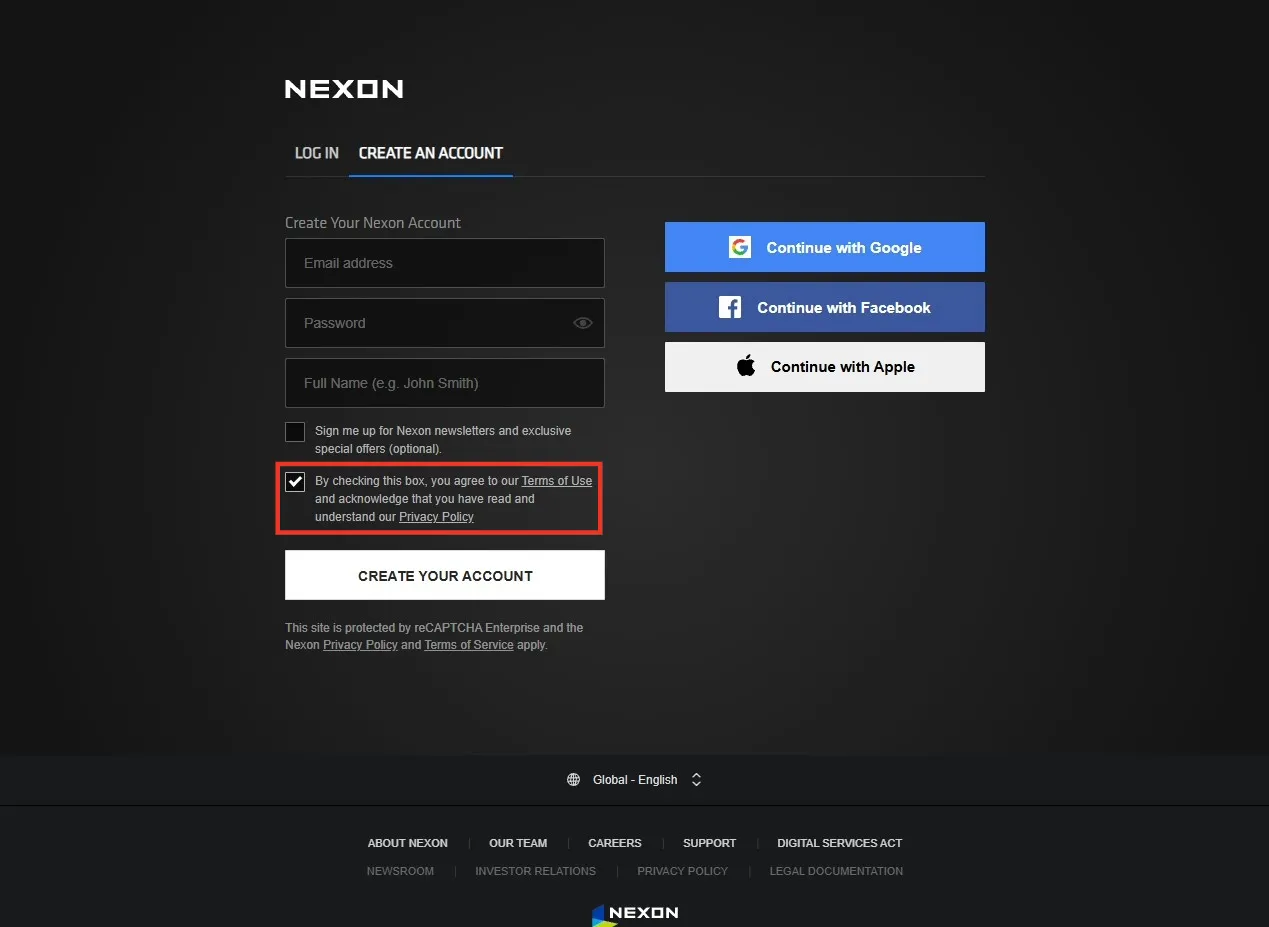
Enter your email address and password, and write your name in English. Since I planned to buy NX later, I used the name printed on my credit card. Check the agreement box at the bottom, then click CREATE YOUR ACCOUNT.
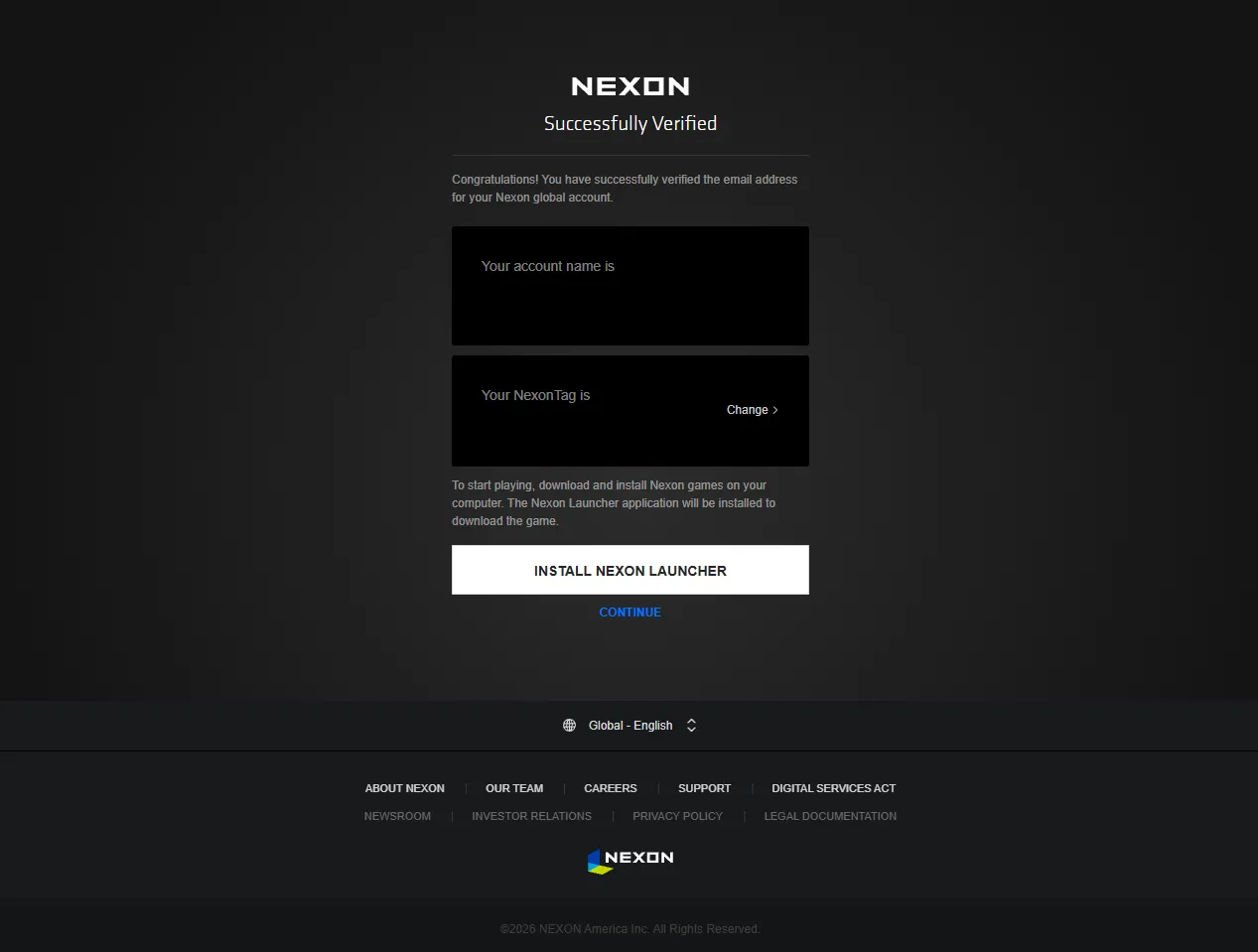
Your Nexon account for the Global region is now ready. Next, let’s use it to install the game.
2. Install the Game
You can install MSCW through Steam or the Nexon Launcher. If you use Steam from outside the Global region, however, you’ll need a separate Steam account set to a country in that region. Steam also downloads Global MapleStory alongside MSCW, bringing the required space to about 60 GB.
![Steam’s listed installation size [5]](/_astro/1-img-4.BvCBnPnm_ZMgBdt.webp)
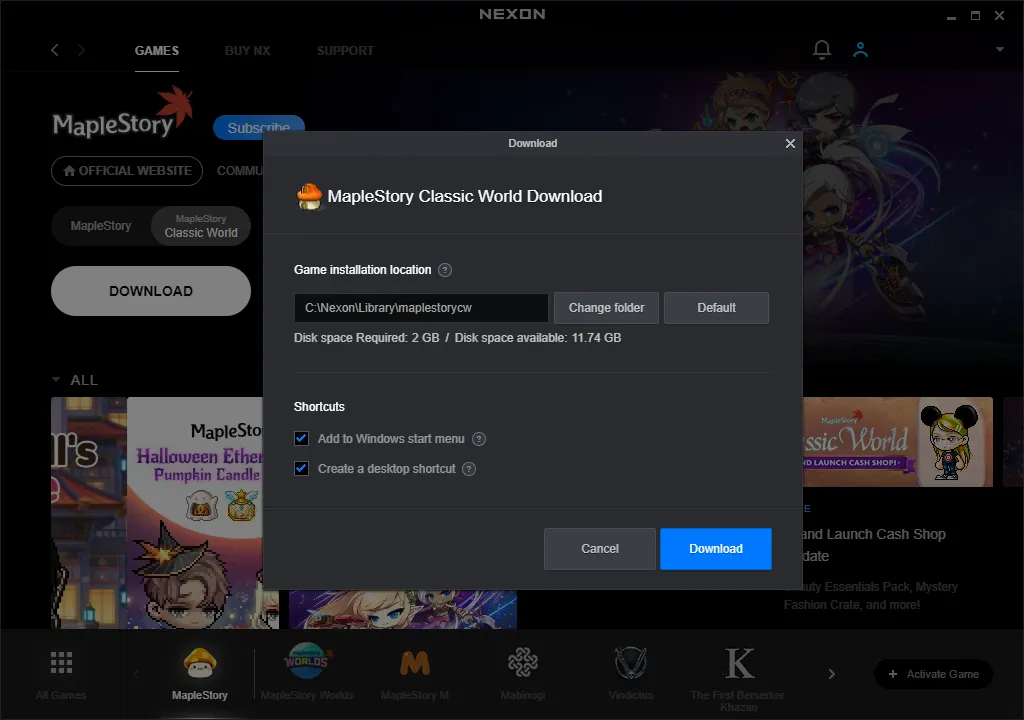
With the Nexon Launcher, you’ll need about 2 GB of storage instead.
I chose the Nexon Launcher, so the steps below use that method.
2.1. Install the Nexon Launcher
On the page shown right after you create your account, click INSTALL NEXON LAUNCHER to download the launcher.
If you’ve already closed that page, go to the Nexon Launcher download page.
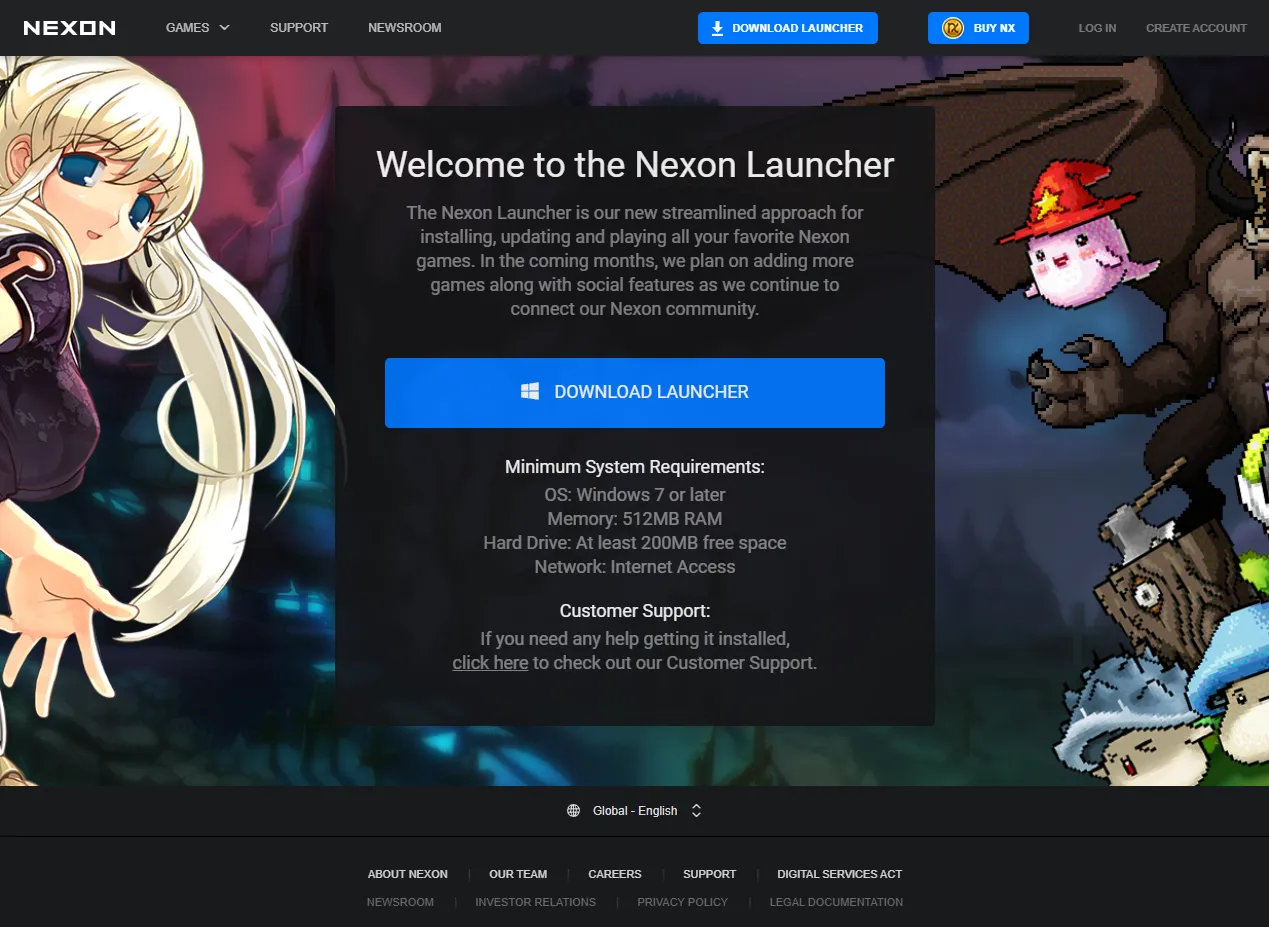
Click DOWNLOAD LAUNCHER to download and run the installer. Then follow the installation screens in the order shown below.
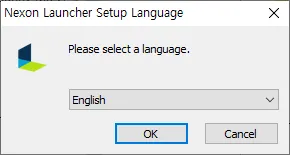
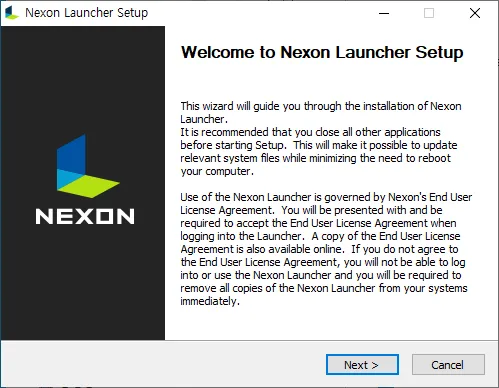
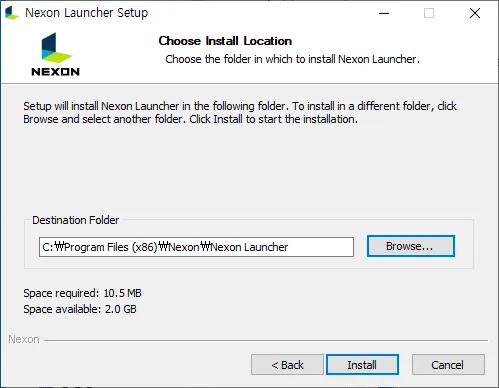
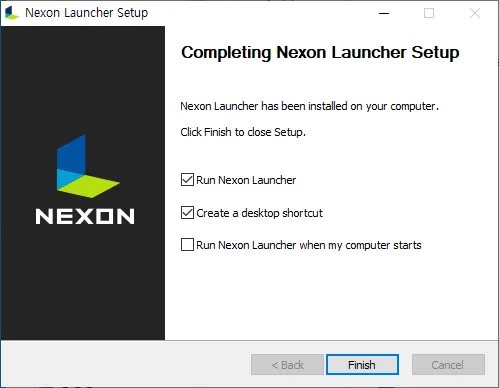
2.2. Install MSCW
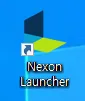
Open the Nexon Launcher from your desktop.
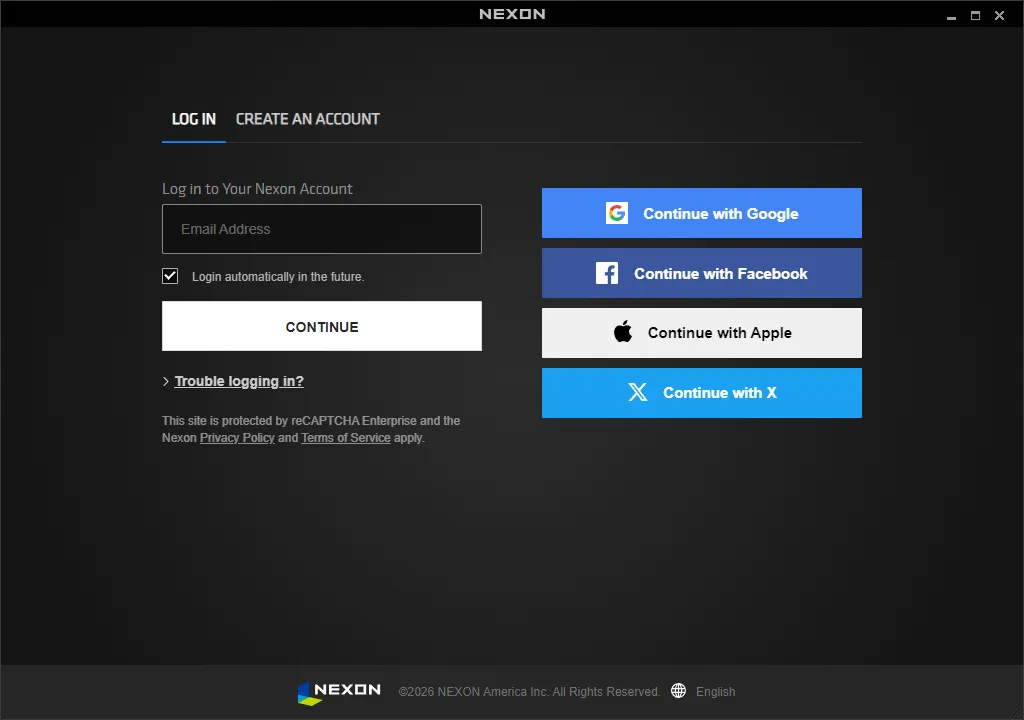
Enter your account details and click CONTINUE to sign in. Sign-in may fail if you’re outside the Global region. If that happens, turn on your VPN and try again.
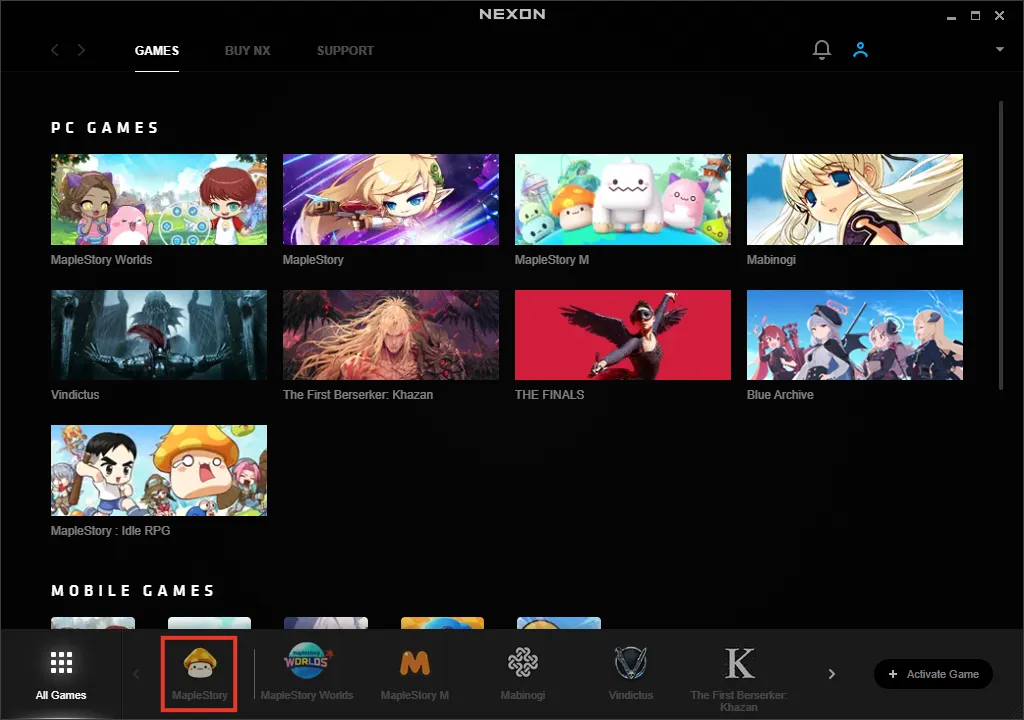
Click MapleStory at the bottom of the window.
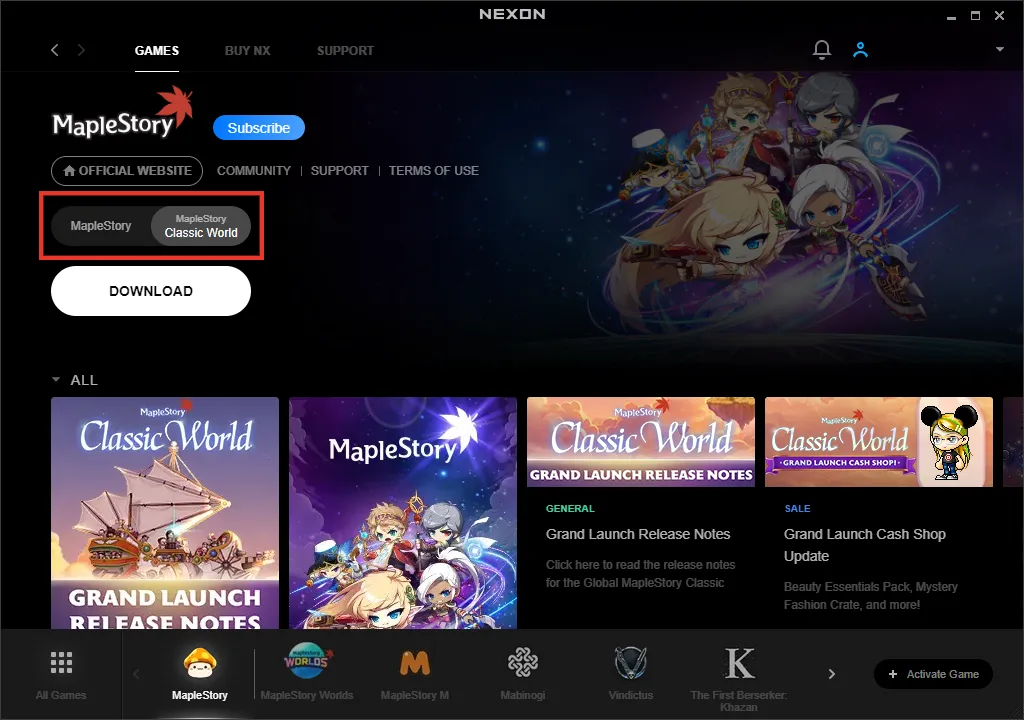
In the game list, select MapleStory Classic World, not MapleStory, and download it. Follow the installation screens in the order shown below.
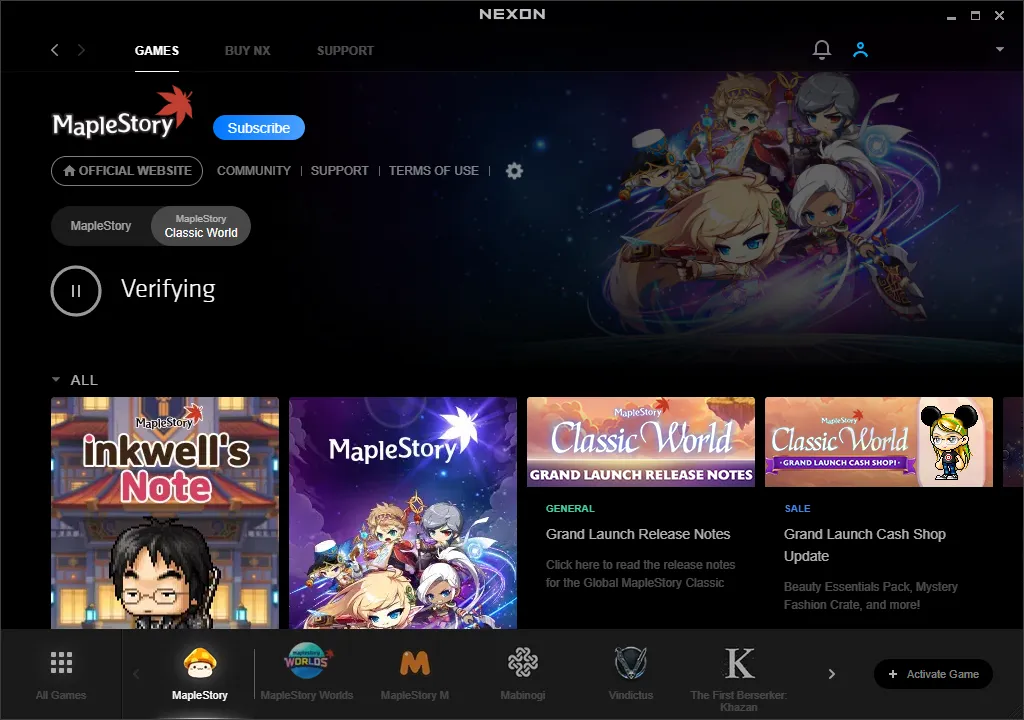
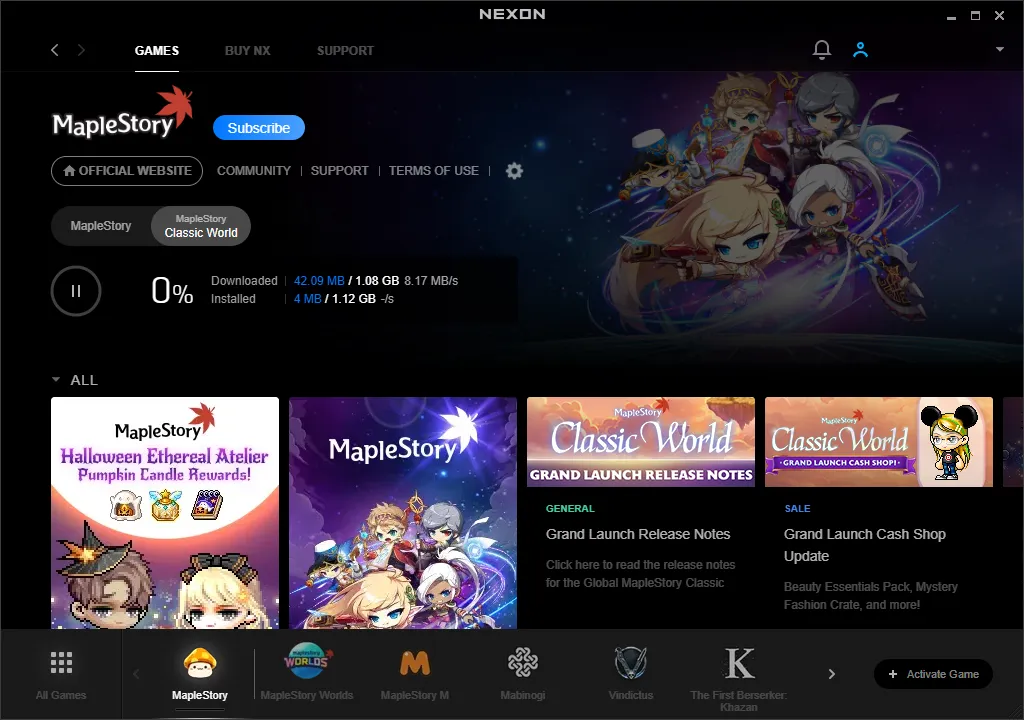
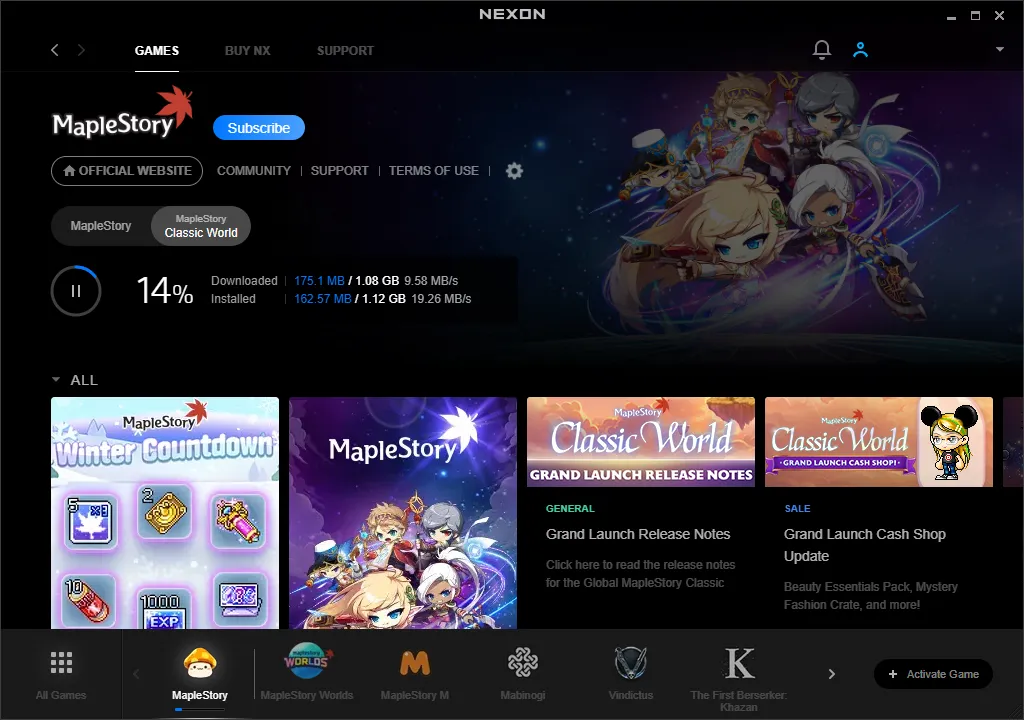
Once installation is complete, click PLAY or the MapleStory icon created on your desktop to launch the game. Keep your VPN on if you’re playing from outside the Global region. Have fun playing MSCW!